
Fonts
Selection of fonts available to any Java Desktop application is dependent on the platform it is running on. A different set of fonts is available on a Windows system and different on a Linux system. To ensure the user experience is consistent, Webswing provides an option to configure which fonts will be available for each application.
Font are configured in webswing.config file as described above. This is how the configuration looks:
  "fontConfig" : {
      "dialog plain" : "${user.dir}/fonts/Roboto-Regular.ttf",
      "dialog bold" : "${user.dir}/fonts/Roboto-Bold.ttf",
      "dialog italic" : "${user.dir}/fonts/Roboto-Italic.ttf",
      "dialog bolditalic" : "${user.dir}/fonts/Roboto-BoldItalic.ttf",
      "dialoginput" : "${user.dir}/fonts/RobotoMono-Regular.ttf",
      "serif" : "${user.dir}/fonts/RobotoSlab-Regular.ttf"
    },
  "fontConfigFallbacks" : [
      "${user.dir}/fonts/NotoSansArabic-Regular.ttf"
    ],
  "fontConfigOutlineFallbacks" : [
      "${user.dir}/fonts/NotoSansCJK-Regular.ttf"
    ],
  "fontConfigUseSystemFallbacks" : true
If you omit this setting or no fonts are defined, Webswing will use the default platform specific settings.
If fontConfig is present, its files replace the platform's primary logical-font mappings. The two explicit fallback lists are appended in browser-rendered and outline-only tiers; system fonts can be appended as the final tier with the option below.
Each logical font (dialog, dialoginput, sansserif, serif, or monospaced) can map its plain, bold, italic, and bolditalic variants to separate TTF files by appending the style to the configuration key, for example "dialog bold". A key without a style, such as "dialog", is equivalent to "dialog plain". If a particular style is not configured, Webswing uses that logical font's plain mapping for the missing style.
fontConfigFallbacks is the ordered browser-rendered fallback tier used for characters missing from a configured logical font. Its TTF files are transferred to the browser as needed, and the first font containing the character is used.
fontConfigOutlineFallbacks is the ordered Java-rendered fallback tier used after fontConfigFallbacks. Its TTF files remain in the Swing process and DirectDraw renders their glyphs as TextLayout outlines. This is useful for large or rarely used fonts that should not be downloaded by the browser.
Both explicit fallback settings require a non-empty fontConfig. Duplicate files and files already used as primary fonts are ignored. If the same file appears in both fallback lists, fontConfigFallbacks takes precedence and the file remains browser-rendered.
Enable fontConfigUseSystemFallbacks to append fonts from the platform's native Java font configuration after both explicit fallback tiers. This provides a host-dependent best-effort fallback for characters not covered by the configured files. It only applies when fontConfig is non-empty and is disabled by default. The Webswing process launcher discovers the native configuration in a short-lived helper process that uses the application's JRE. The result is cached for the lifetime of the server or session pool and shared by sessions using the same JRE and locale settings.
Fonts with layout attributes, such as TextAttribute.TRACKING, KERNING, or LIGATURES, are rendered as Java TextLayout outlines to preserve spacing and glyph layout. This applies even when the font is configured for browser rendering. Ordinary plain, bold, and italic fonts continue to use the browser text path when no other outline fallback is required.
Font settings are important when DirectDraw rendering is enabled. DirectDraw transfers the configured primary fonts and fontConfigFallbacks files to the browser when needed, then renders logical fonts with the same ordered browser-font stack. Physical fonts selected explicitly do not receive this logical-font fallback stack.
Outline-only and system fallback fonts are never transferred to the browser and are not affected by directdraw.fontsProvided. When Java selects one for a DirectDraw text run, Webswing renders that run as TextLayout outlines so its Java layout and glyph selection are preserved. An outline-only font selected directly by the application also remains Java-side and is rendered as outlines.
Text using a physical font that is not defined in font configuration is also rendered as TextLayout outlines by default. To restore the legacy server-rasterized glyph path for eligible simple text runs, enable the directdraw.rasterGlyphs advanced setting. Complex, bidirectional, outline-only, and system-fallback text continues to use TextLayout outlines even when this setting is enabled.
Using too many or too large fonts may result in rendering delays.
If fonts are not configured, Webswing will use default browser fonts for rendering logical font families (dialog, dialoginput, sansserif, serif, monospaced) and TextLayout outline rendering for other fonts.
Inspect text rendering
Enable Debug font rendering in live samples in the Fonts demo's Advanced tab. Its legend maps solid, dotted, and dashed bounds to browser text, raster glyphs, and outline fallbacks.
| Color | Pattern | Path | Reason |
|---|---|---|---|
Green #008000 |
Solid | Browser text | Configured or logical browser font |
Blue #0055FF |
Dots | Raster glyphs | Unconfigured font with directdraw.rasterGlyphs enabled |
Orange #C45100 |
Short dashes | Outlines | Font layout attributes such as tracking, kerning, or ligatures |
Brown #6B3D00 |
Spaced short dashes | Outlines | Very small font |
Red #E00000 |
Long dashes | Outlines | directdraw.drawStringAsPath enabled |
Purple #7700CC |
Dash + dot | Outlines | Bidirectional text |
Olive #787800 |
Paired dashes | Outlines | Unconfigured font with raster glyphs disabled |
Magenta #C00090 |
Dash + 2 dots | Outlines | Outline-only font or system font fallback |
Teal #007F8B |
Long + short dash | Outlines | Complex glyph layout |
Navy #001A66 |
Triple dashes | Outlines | drawString(AttributedCharacterIterator, ...) |
For the whole application, enable the directdraw.debugFonts advanced setting or add -Ddirectdraw.debugFonts=true to vmArgs, then restart the session.
For one component, discover the Boolean rendering hint named directdraw.debugFonts through Graphics2D.getRenderingHints() and set it on a graphics copy while painting. The demo's FontDebugPanel shows this standard Swing/Java2D approach.
Explicit drawGlyphVector(...), TextLayout.draw(...), and text already painted into a BufferedImage have no diagnostic border. Debug bounds describe the DirectDraw text path and may not match the browser's final pixels.
Provide fonts in CSS
To optimize loading fonts from server you can preload fonts using CSS. This option is available only when using DirectDraw rendering. To enable font preloading add startup parameter -Ddirectdraw.fontsProvided=true to vmArgs property in your application configuration. Next you have to add a custom.css file to your custom index.html (see Customization) which will contain the CSS styles for the fonts:
@font-face {
  font-family: "arial-unicode-ms.ttf";
  src: url("fonts/arial-unicode-ms.ttf");
}

@font-face {
  font-family: "arial.ttf";
  src: url("fonts/arial.ttf");
}
Define an @font-face for every primary fontConfig file and every file in fontConfigFallbacks. Do not include fontConfigOutlineFallbacks or system fallback fonts solely for Webswing; those tiers remain Java-side. The CSS font-family must exactly match the font file basename, including its extension. With directdraw.fontsProvided=true, Webswing uses those names in the ordered CSS font stack and does not transfer any font files to the browser.
Make sure the font files are in your application webFolder and accessible. Finally add this div to your custom index.html to force browser to download the font files:
<div id="webswing-font-preload" style="position: fixed; color: transparent;">
    <span style="font-family: 'arial-unicode-ms.ttf';">a</span>
    <span style="font-family: 'arial.ttf';">a</span>
</div>
Embed fonts in PDF
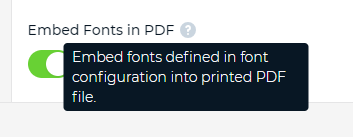
When printing with Webswing print service the resulting PDF draws custom fonts as shapes. This results in PDF being larger in size and also not being able to select rendered text. To fix this, you can enable "fontEmbeddingEnabled": true in app config. This will make sure that the font files defined in font config are included in the PDF and that PDF renders selectable text. Embedding fonts also reduces the PDF size.