

Linux Web Launcher
Linux desktop applications are often essential parts of business workflows, but delivering them to users can mean managing a desktop environment, application installation, and updates on every workstation. Moving these applications to browser-based access should not require rewriting them - and it does not, thanks to the Linux Web Launcher runtime.
Linux Web Launcher (LWL) extends Webswing to Linux desktop applications. It runs the application beside Webswing and renders its windows securely in the browser, so users can access the application without installing it locally. While the primary focus of LWL is to support native Wayland applications, it can also deliver X11 applications through the XWayland compatibility layer - without compromising the qualities Webswing for Java offers.
Before you begin: LWL builds on the same Webswing deployment, Admin Console, application-configuration, and Session Pool concepts used in Webswing for Java. These pages assume that you are familiar with those basics. If you are new to Webswing, start with the Overview and Quick Start Guide.
How does it work?
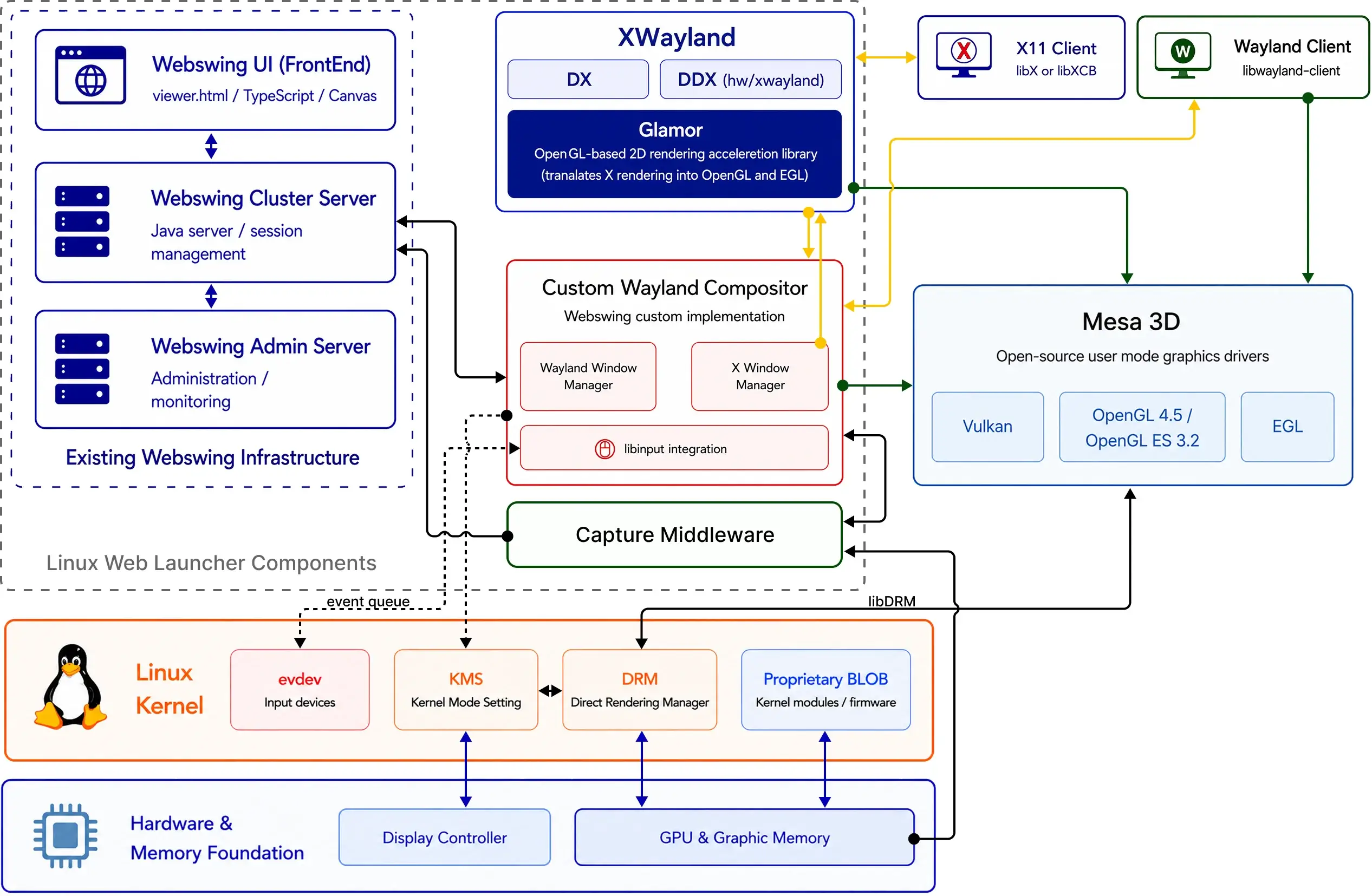
LWL runs beside the Linux application on the host that runs the Webswing session. A Wayland-capable application connects directly to the LWL compositor; an X11 application connects through XWayland. The compositor manages application windows and input, while the capture middleware collects the rendered output for Webswing to deliver to the browser.
The architecture below shows how LWL fits between the existing Webswing infrastructure, Linux applications, and the Linux graphics stack.
From application frame to browser
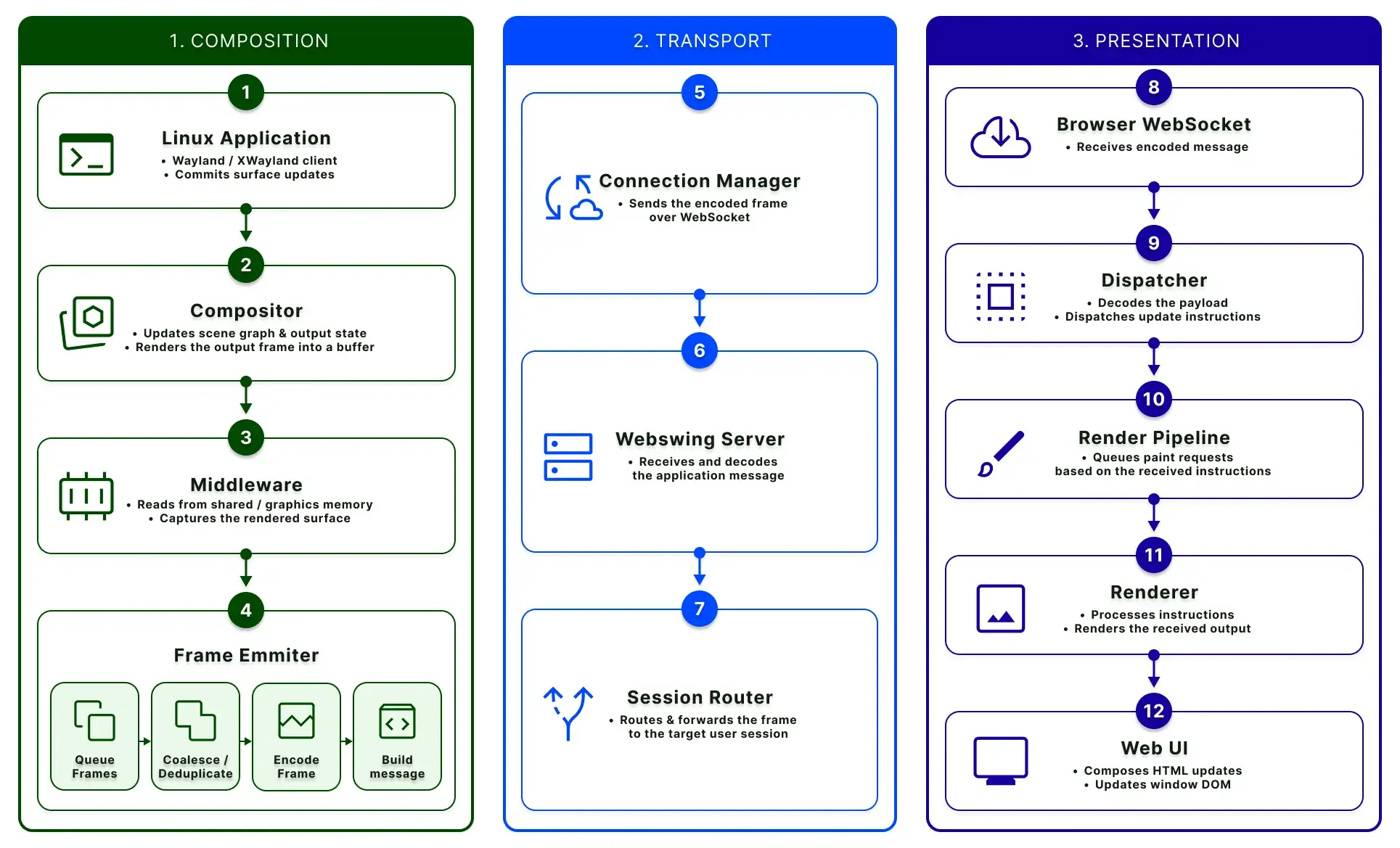
The frame lifecycle has three stages:
- Composition — the Linux application commits surface updates. The compositor updates its scene and output state, and the capture middleware collects the rendered surface. The frame emitter queues, coalesces, encodes, and packages the update.
- Transport — LWL sends the encoded frame over WebSocket. The Webswing server receives it and routes it to the connected user session.
- Presentation — the browser client decodes and dispatches the update, then the render pipeline and renderer apply it to the Webswing user interface.
Start using LWL now
- Quick start — test one of the example drop-in applications within a few minutes.
- Installation and requirements — learn about system requirements, install the launcher and take a look at dependencies.
- Configure a Linux application — configure the launcher type, application command, backend, and environment to use an application of choice with LWL.