

Developer's Guide
Development guide
If you would like to build the project and fix a bug or add new feature, this quick start guide may help you do it.
Setup development environment
Setting up development is easy. Just follow these steps:
-
Download the Source code from the Client Portal
-
Install supported version of JDK and Maven. (Maven has to be configured to run with supported JDK otherwise you may encounter compilation errors)
-
Import to your favorite IDE as maven projects.
Note: JDK11 and Maven3 are needed for building Webswing. If you are using Linux, only 64-bit version is working at the moment.
Building Webswing
Maven is used for building Webswing. To trigger build, run the following command from the repository root folder:
mvn -Pbuild clean install
This command explicitly selects the build profile, which adds the build-profile packaging steps such as source and Javadoc artifacts. It does not activate the separate release profile.
Final distribution ZIPs are written to the repository-level dist directory.
The Linux Web Launcher is excluded from the default reactor because its native Docker builds are comparatively expensive. Add lwl while developing it; Maven then includes the module in the reactor and builds only the current host architecture. Release builds combine AMD64 and ARM64 in one package:
mvn -Plwl clean install
mvn -Pbuild,lwl clean install
The release build also creates
dist/webswing-example-linux-apps-<version>.zip. This drop-in uses one Webswing
application configuration and a browser chooser to launch GIMP or XClock from
the shared Linux application runtime image.
Use -Dlinux.web.launcher.arch=amd64 or arm64 to override host detection for a development build.
Project structure
Webswing is developed as a modular Maven project. Its product, tooling, and example sources are organized into the webswing, webswing-config, webswing-admin, webswing-cluster, webswing-test-tool, webswing-security-modules, webswing-examples, and webswing-tools top-level modules, with additional nested modules.
webswing is the parent maven project that contains all modules.
webswing-admin is the Admin console implementation.
webswing-app-toolkit module contains the custom implementation of java.awt.Toolkit called WebToolkit. This project must not contain any external dependencies, because it is part of boot classpath when running the swing application instance. This module contains also model classes for communication with web.
webswing-app-toolkit-java8, webswing-app-toolkit-java11, etc. modules implement Java version specific methods and interfaces.
webswing-app-launcher module takes care of correct initialization of Swing application's classpath and executing the main method of the Swing application in a special Webswing classloader.
webswing-app-services module isolates all necessary dependencies like WebSocket client and pdf generation libraries. This is necessary to avoid classpath pollution of swing applications, which may lead to classloading issues.
webswing-server contains the server-side session management and browser client used to display Swing applications. Admin Console backend and frontend sources are maintained separately under the top-level webswing-admin module.
webswing-server-launcher module is responsible for launching the embedded jetty server and deploying the webswing-server.war web application in it. This module also parses the command-line options.
webswing-assembly module is used to create distribution package with demo application and start scripts and default configuration files.
Packaging structure
Webswing packages the server as a standard webswing-server.war and provides embedded startup through the separate server/webswing-jetty-launcher.jar. Start the embedded server with java -jar server/webswing-jetty-launcher.jar -w webswing-server.war. The WAR is not an executable embedded-Jetty artifact.
The build process for the WAR is defined in the webswing-server-war project's pom.xml. Runtime dependencies are separated into these categories within the WAR:
-
Swing instance dependencies are stored in
/WEB-INF/swing-lib/directory. These libraries are used by thewebswing-app-servicesproject to allow communication with server, encode images or generate pdf files. -
Standard web application dependencies are stored in
/WEB-INF/lib/folder. These libraries are used by thewebswing-serverweb application for handling queries from browsers and passing rendered screen from Swing instance to the client's browser window.
Dependencies in classloading
Webswing uses custom classloaders to achieve classpath isolation and also bytecode modifications where necessary. The following picture describes the way Webswing loads swing applications:
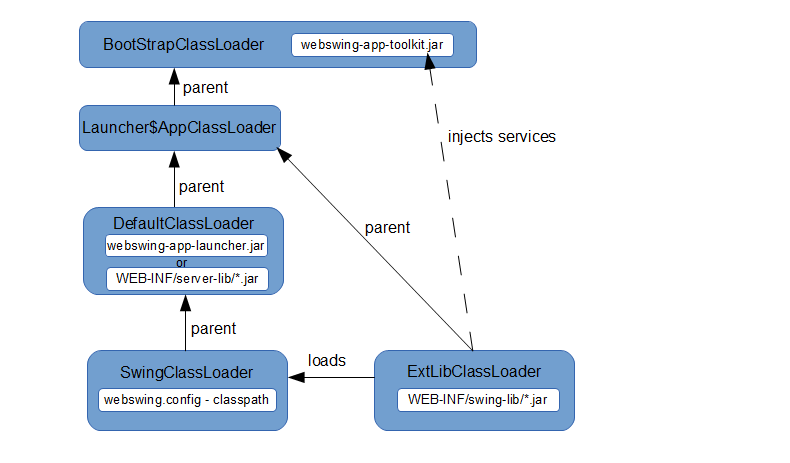
Embedded server startup enters through org.webswing.ServerLauncherMain in server/webswing-jetty-launcher.jar. The WAR's main.Main remains responsible for application and Session Pool launch modes.
The above picture shows the Swing instance execution case, where the main class creates also ExtLibClassLoader with classpath referring to /WEB-INF/swing-lib folder. After this classloader is created, singleton services (pdf generator, websocket connection, etc.) are instantiated and injected to WebToolkit, which is used by Swing applications.
One of the mentioned services is SwingClassloaderFactory, which instantiates the special classloader with bytecode instrumentation capabilities, which loads the Swing application.
Debugging
It is often necessary to debug Swing application running within Webswing to analyze eventual Webswing specific problems. This is very easy with Webswing. Assuming that your application is already configured in webswing.config file, to debug your Swing application follow these steps:
-
Open webswing.config file and change the "debug" property of your application to true.
-
Start Webswing server as usual.
-
Open the configured Webswing application page with the
debugPortURL parameter (for example, http://localhost:8080/webswing-demo?debugPort=8000). -
You will see a log message in the console saying that the Java process is waiting for debugger connection on port 8000. Now only set up your favorite debugger to connect to this port.
Note: If debugging for longer time causes session termination, it is probably due to watchdog thread that monitors the health of swing sessions. To prevent session shutdown while debugging, you can either configure the breakpoints to not suspend all threads or add -Dwebswing.heartbeatTimeout=-1 to vmArgs of your application in webswing.config file.