
Swing/JavaFX
Application Setup
Swing and JavaFX applications are configured in json format and by default are saved in file webswing.config, which is by default placed in the same folder as the webswing-server.war file. This location may be changed using the -c command-line option. It is recommended to use the Administration console form based configuration screen to modify this file to avoid JSON formatting problems.
Configuration using Admin Console
The easiest way of configuring your application is using the Admin console. To access the Admin console click Manage from Webswing homepage or go to the admin console URL that you have configured in your webswing.config file under root ("/") path.
Navigate to the Configuration view where you can see the list of configured applications. You can add new or edit existing applications here.
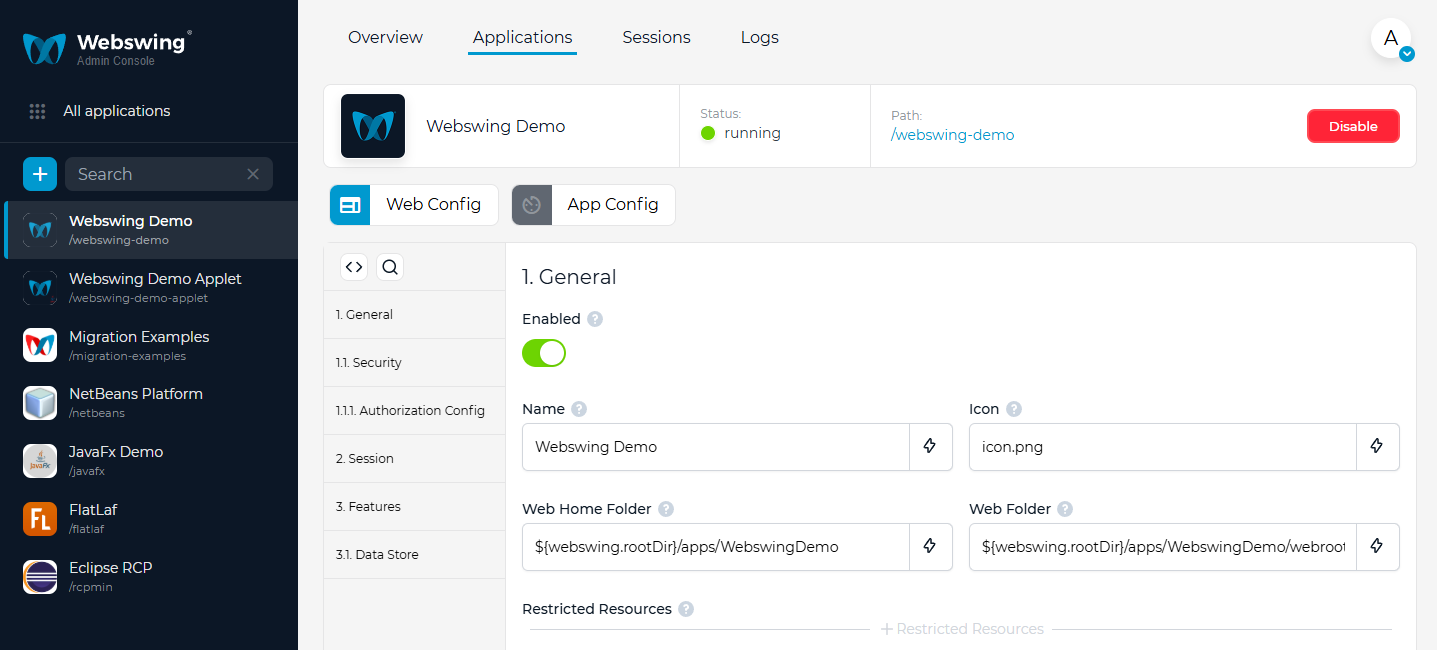
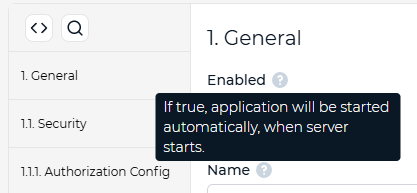
You can edit or view the settings. These are split in logical sections. Each setting has a description, which is displayed when hovered on the question mark.
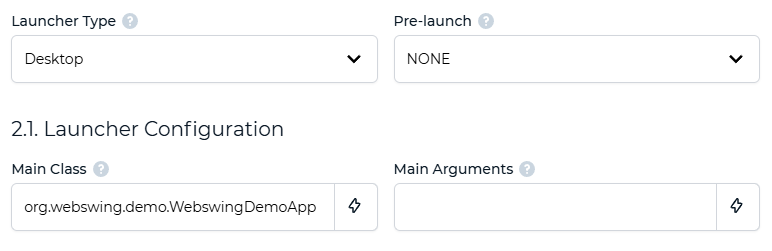
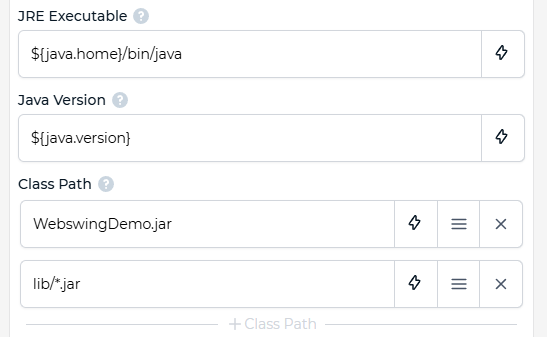
To configure a Swing or JavaFX application choose Desktop as Launcher Type, specify your Main Class and arguments if needed. Don't forget to configure also Java and Class Path.
JavaFX
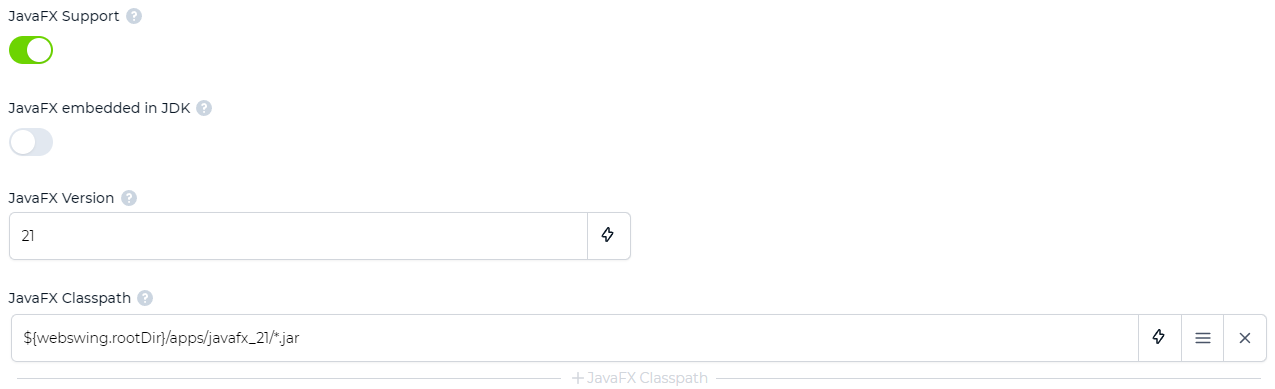
Webswing supports JavaFX versions 8, 11, 17, 21 and 25. In the Quick Start Wizard, enable JavaFX and select a version compatible with the selected application Java runtime. The wizard prefers complete libraries already available on the server and offers pinned releases for download. Select Other version… to enter an exact release within a supported major version. Click Download beside the picker to prepare missing libraries before setting up the application; download progress and failures appear in the wizard, where you can retry without re-entering application settings.
Libraries are cached under ${webswing.rootDir}/javafx/<version>/<platform>/. Complete libraries for the selected platform can be reused offline. The wizard configures javaFxVersion and javaFxClassPathEntries when creating the application.
For manual configuration of JavaFX 11 or newer, obtain the required OpenJFX libraries from Maven Central and set javaFxVersion and javaFxClassPathEntries in the application configuration. Select libraries for the application host's operating system and Java runtime architecture. You can also supply your own JavaFX libraries.
You can also use a JDK that includes JavaFX. Select the bundled-in-JDK option in the wizard, or set javaFxEmbeddedInJdk to true in the application configuration. You do not need javaFxClassPathEntries in that case. For manual setup, set javaFxVersion to the bundled JavaFX version, or leave it blank to use the JDK version. For Java 8, use a JDK that includes JavaFX 8; automatic downloads require Java 11 or newer.