
SWT (Standard Widget Toolkit)
Webswing provides support for running SWT applications in a web browser.
In general, SWT applications are configured in the same way as regular Swing applications. You can use the Admin Console or edit the webswing.config file manually.
However, SWT applications require a few additional settings. This page describes two supported configuration options.
Option 1: Bundles
Basic SWT Setup
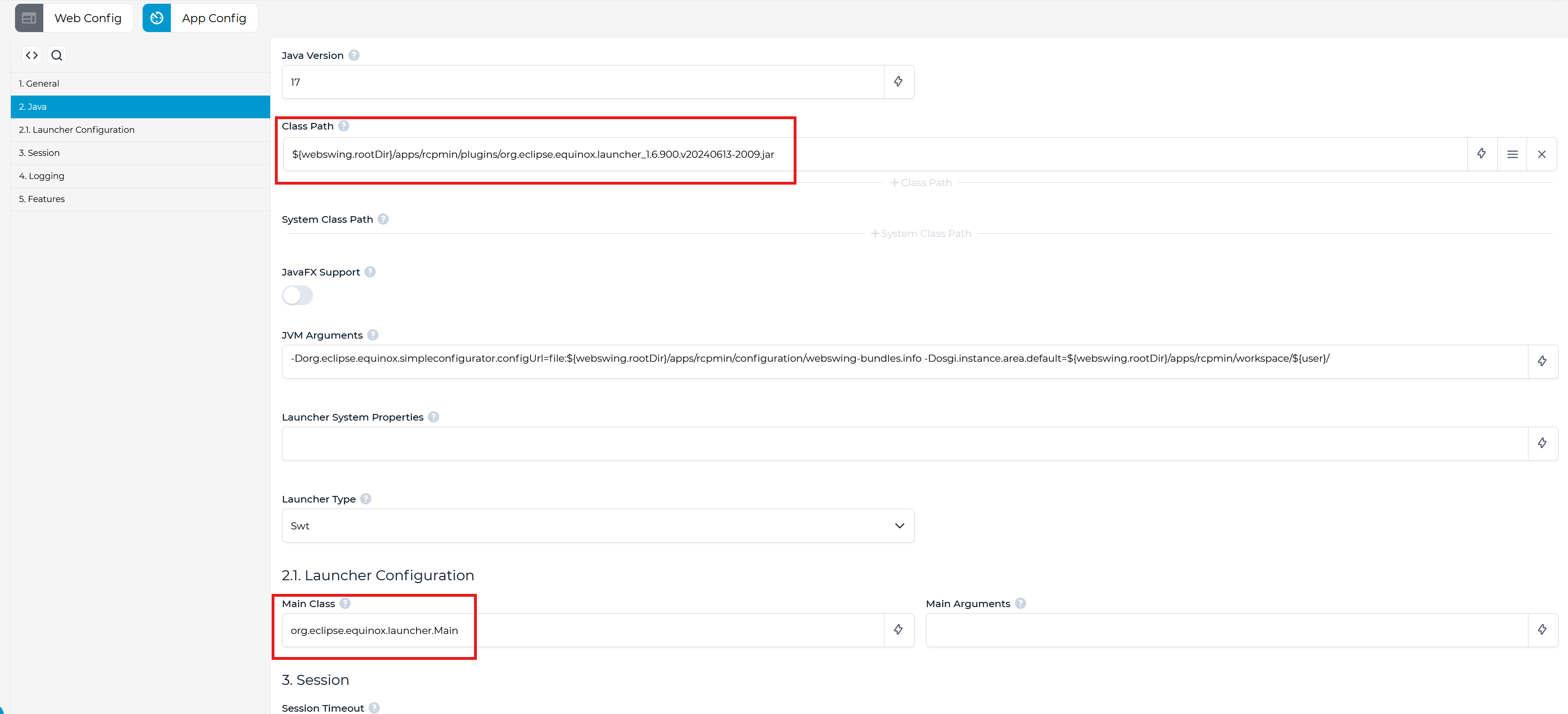
In the Admin Console, open the Java section and configure the following settings.
Class Path
Add the Eclipse Equinox launcher JAR.
Example:
${webswing.rootDir}/apps/rcpmin126/plugins/org.eclipse.equinox.launcher_1.6.900.v20240613-2009.jar
Launcher Type
Set the launcher type to:
Swt
Launcher Configuration
Set the SWT application main class.
For Eclipse RCP applications, the main class is always:
"mainClass": "org.eclipse.equinox.launcher.Main"
Note: The remaining properties are documented in the Swing application setup page.
Advanced SWT Setup
If you want to configure an Eclipse RCP (Rich Client Platform) application you need configure some specific settings.
JVM Arguments
Add the following JVM argument:
"vmArgs": "-Dorg.eclipse.equinox.simpleconfigurator.configUrl=file:${webswing.rootDir}/apps/rcpmin/configuration/webswing-bundles.info"
This tells the RCP application where to find the custom webswing-bundles.info file.
See Create webswing-bundles.info.
"vmArgs": "-Dosgi.instance.area.default=${webswing.rootDir}/apps/rcpmin/workspace/${user}/"
This tells the RCP application where to find the workspace.
Create webswing-bundles.info
You need to manually create a webswing-bundles.info file.
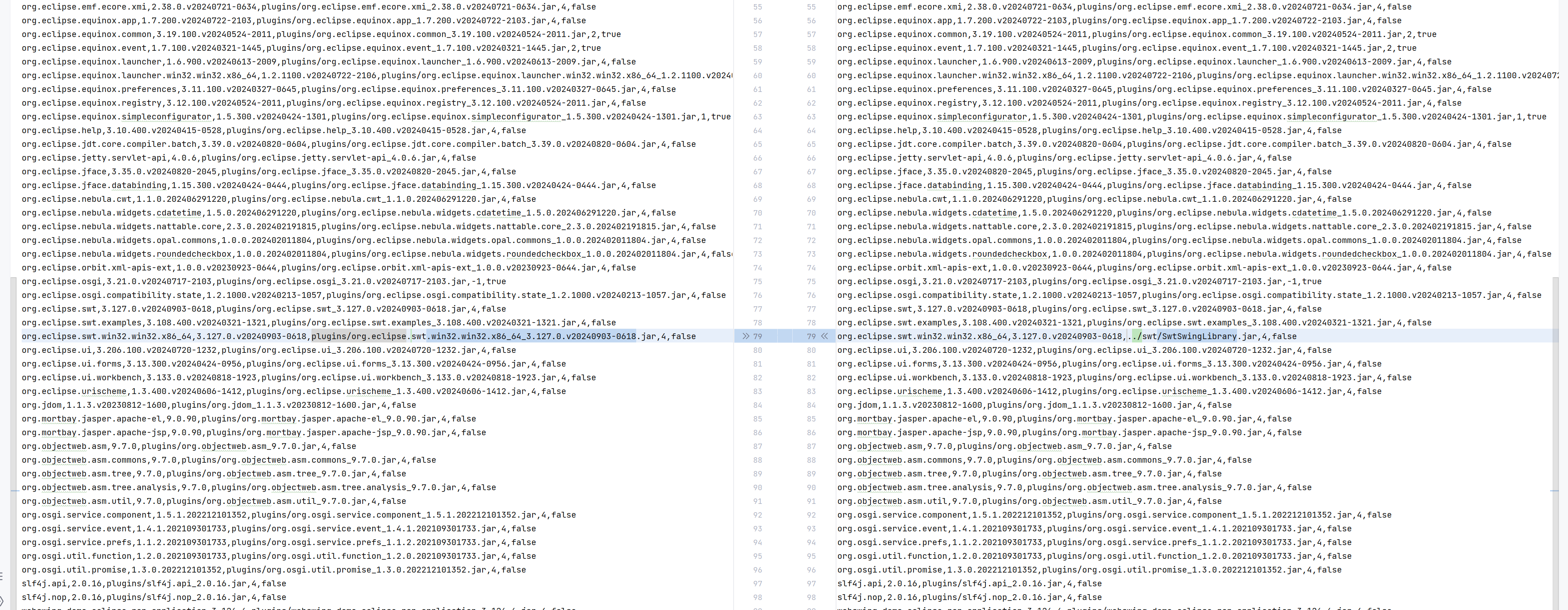
This file is a copy of the original bundles.info file. The only required change is the path to the following SWT bundle:
org.eclipse.swt.win32.win32.x86_64
SWTSwing Library
Webswing uses SWTSwing from the following GitHub project:
https://github.com/Chrriis/SWTSwing
If you want to use your own SWTSwing library, configure the SWTSwingLibrary.jar path in webswing-bundles.info.

Option 2: Classloader
Basic SWT Setup
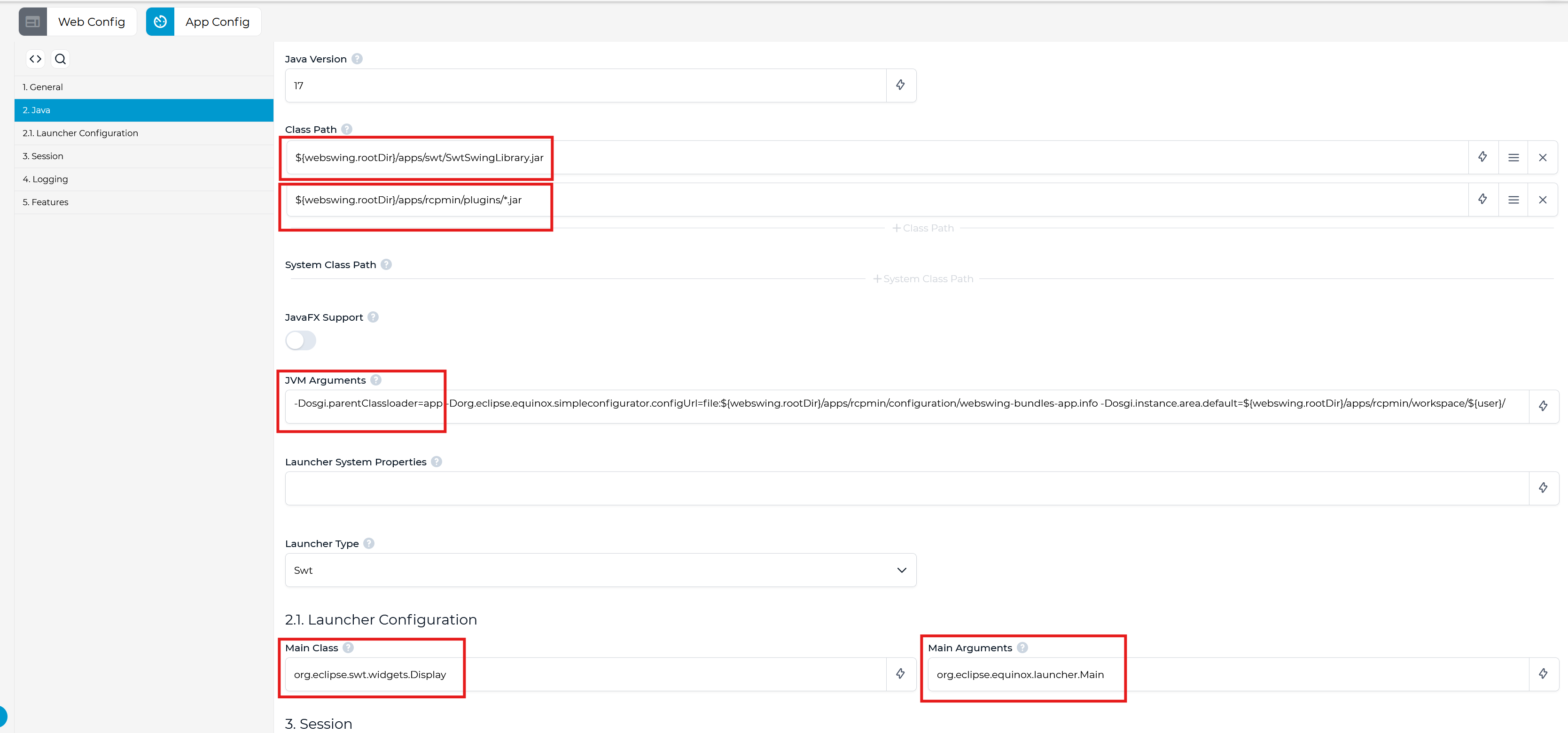
In the Admin Console, open the Java section and configure the following settings.
Class Path
Add the following entries to the class path:
- First, add
SwtSwingLibrary.jar:
${webswing.rootDir}/apps/swt/SwtSwingLibrary.jar
- Then, add all application plugin JARs:
${webswing.rootDir}/apps/rcpmin/plugins/*.jar
JVM Arguments
Add the following JVM arguments.
"vmArgs": "-Dosgi.parentClassloader=app"
This setting is required. It tells OSGi to use the application classloader.
Launcher Type
Set the launcher type to:
Swt
Launcher Configuration
Set the SWT application main class.
For this setup, use:
"mainClass": "org.eclipse.swt.widgets.Display"
For Eclipse RCP applications, set the main argument to:
"args": "org.eclipse.equinox.launcher.Main"
Note: The remaining properties are documented in the Swing application setup page.
Advanced SWT Setup
If you want to configure an Eclipse RCP (Rich Client Platform) application you need configure some specific settings.
JVM Arguments
Add the following JVM argument:
"vmArgs": "-Dorg.eclipse.equinox.simpleconfigurator.configUrl=file:${webswing.rootDir}/apps/rcpmin/configuration/webswing-bundles.info"
This tells the RCP application where to find the custom webswing-bundles.info file.
See Create webswing-bundles.info.
"vmArgs": "-Dosgi.instance.area.default=${webswing.rootDir}/apps/rcpmin/workspace/${user}/"
This tells the RCP application where to find the workspace.
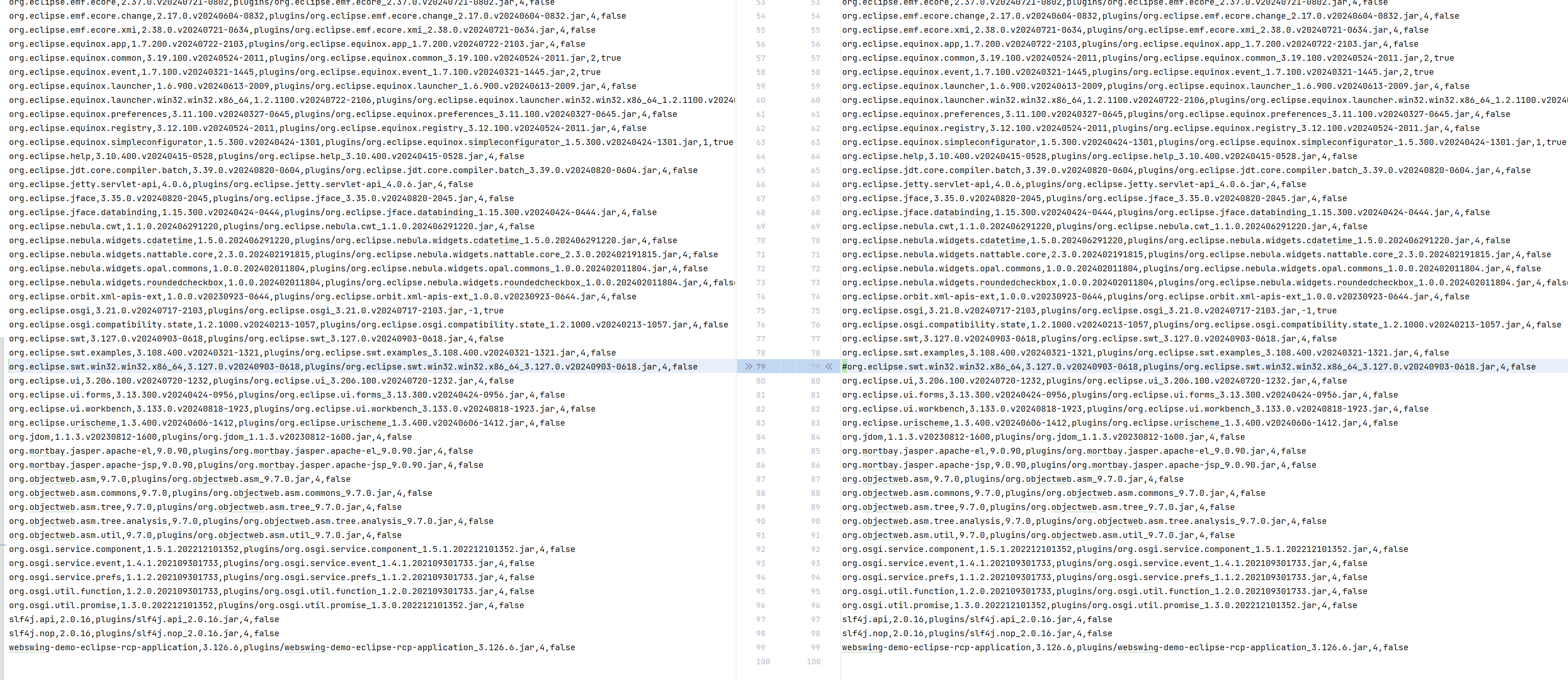
Create webswing-bundles.info for app classloader
You need to manually create a webswing-bundles.info file.
This file is a copy of the original bundles.info file. For the ParentClassloader=app setup, the line for the following bundle must be commented out:
org.eclipse.swt.win32.win32.x86_64
Advanced Settings
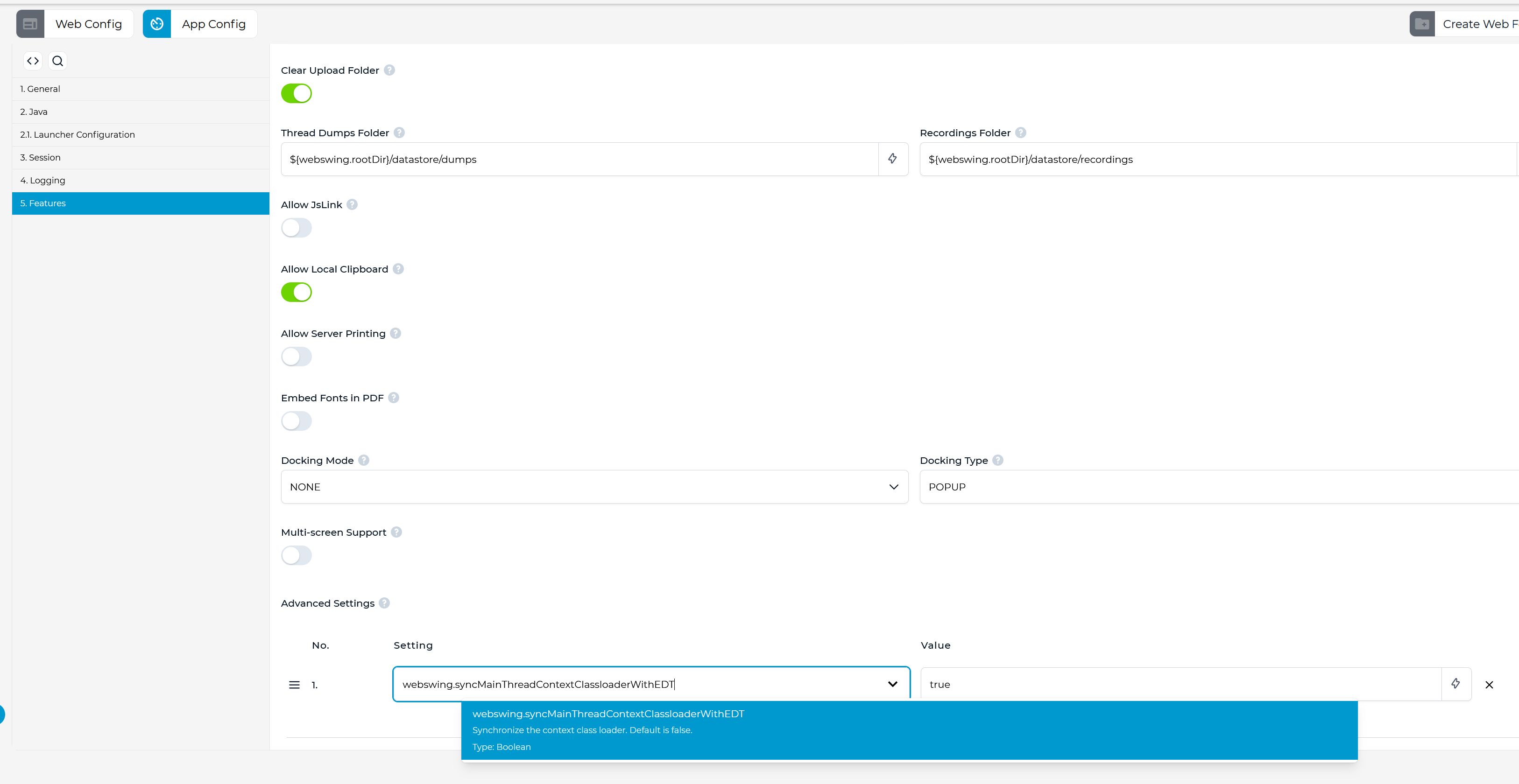
In some cases, you need to set the webswing.syncMainThreadContextClassloaderWithEDT parameter to true.