

Admin Console
For configuration, management and monitoring purposes Webswing provides a convenient web interface.
Installation
Admin Console is distributed as a standalone web server application in its own war file. In a standard distribution Admin Console is started together with Webswing Server, so running Admin Console is as simple as starting webswing.bat and then opening http://localhost:8080/admin.
If you want to start only Webswing Server you have to update the startup script. You can also deploy the webswing-admin-server.warmanually in a servlet container like Tomcat. To start only Admin Console server use the scripts in admin folder.
If you deploy Webswing Server and Admin Console separately you have to configure both servers to successfully connect:
- Admin Console URL in
webswing.configfile- under
"/"path set field"adminConsoleUrl": "http://localhost:8090"or the current URL where your Admin Console server is running
- under
- Connection secret in
webswing-admin.properties- use the same
webswing.connection.secretvalue as configured inwebswing.propertiesfile
- use the same
The admin folder also contains two configuration files:
jetty.properties- similar to Webswing server jetty configuration, configure host, port and SSL herewebswing-admin.properties- several Admin Console server properties described in a table below
| Property | Description | Default value |
|---|---|---|
webswing.connection.secret |
secret signing key for JWT tokens, should be at least 128 characters long string | |
webswing.connection.secret.file |
alternative way to specify secret string in a file | |
webswing.connection.secret.random |
generate a random secret when no direct, file, or script source is configured; separately running modules must instead share one secret | false |
webswing.connection.secret.script |
command whose standard output supplies the secret; arguments may follow the script path | |
webswing.connection.secret.script.timeout.ms |
maximum time in milliseconds to wait for the secret script | 30000 |
webswing.server.publicUrl |
public URL on which applications are accessible on public internet | http://localhost:8080 |
admin.reconnect.interval |
maximum time in seconds spent reconnecting to a Webswing Server; use -1 for an unlimited interval or 0 to omit this limit |
-1 |
admin.reconnect.retries |
maximum number of reconnect attempts; use -1 for unlimited retries or 0 to omit this limit |
-1 |
admin.reconnect.delay |
delay in milliseconds between failed reconnect attempts | 5000 |
admin.reconnect.terminateServerOnReconnectExhausted |
terminate the hosting JVM with exit code 1 when reconnecting is disabled or exhausted for every configured Webswing Server |
false |
webswing.websocketUrlLoader.type |
type of websocket URL loader - define how should Admin Console server get the websocket connection URL to Webswing server (use propertyFile_noReload to disable reloading) |
propertyFile |
webswing.websocketUrlLoader.interval |
websocket URL loader reloading interval in seconds | 5 |
webswing.websocketUrlLoader.interval.disconnected |
websocket URL reload interval in seconds while disconnected | value of webswing.websocketUrlLoader.interval |
webswing.server.websocketUrl |
comma-separated list of websocket URLs to webswing servers (use with loader type propertyFile and propertyFile_noReload) |
ws://localhost:8080 |
webswing.websocketUrlLoader.script |
script that loads a comma-separated list of websocket URLs (use with loader type script) |
|
webswing.websocketUrlLoader.script.timeout |
maximum time in seconds to wait for the URL-loader script | 5 |
webswing.websocketUrlLoader.script.emptyOnError |
replace the current URL list with an empty list when the URL-loader script fails | false |
webswing.server.websocket.truststore.type |
truststore type for secure websocket connections | |
webswing.server.websocket.truststore |
truststore path for secure websocket connections | |
webswing.server.websocket.truststore.password |
truststore password for secure websocket connections | |
webswing.server.websocket.hostnameVerifier.disabled |
disable websocket TLS hostname verification | false |
webswing.server.websocket.proxyUri |
HTTP proxy URI used for websocket connections | |
admin.customize.dir |
directory containing Admin Console customizations | customize/ |
webswing.log.file.audit |
audit log filename override; set only when the default filename in log4j2.xml was changed |
|
webswing.log.file.server |
server log filename override; set only when the default filename in log4j2.xml was changed |
|
webswing.logsDir |
path where admin console logs should be stored | logs/ |
Reconnect Policy
By default, Admin Console keeps reconnecting indefinitely. The first connection attempt, including the first attempt after an established connection closes, is immediate. admin.reconnect.delay applies between subsequent failed attempts.
You can limit reconnecting by time, number of attempts, or both. Set the unused limit to 0 when configuring only one finite limit. When both limits are finite, reconnecting stops when either limit is reached. Set both limits to 0 to disable reconnecting.
When the effective server URL list changes, Admin Console starts a new connection cycle for every configured URL that currently has no connection. This resets the reconnect interval and retry count for those URLs. Reloading an unchanged URL list does not reset reconnecting.
If admin.reconnect.terminateServerOnReconnectExhausted is true, Admin Console terminates the hosting JVM with exit code 1 after all configured server connections have exhausted their reconnect policy, or when reconnecting is disabled and no connection remains. This allows a service manager to restart the process after a connection failure. In a shared servlet container, terminating the JVM also stops every other application hosted by that process; enable this option only when that is intended.
By default, Admin Console server runs on http://localhost:8080/admin or http://localhost:8090 if started separately. You can either access it directly on this URL or click the Manage link in the application selector.
If you don't want to use Admin Console and want to remove the Manage link from selector, simply remove adminConsoleUrl field from your configuration in webswing.config.
Overview
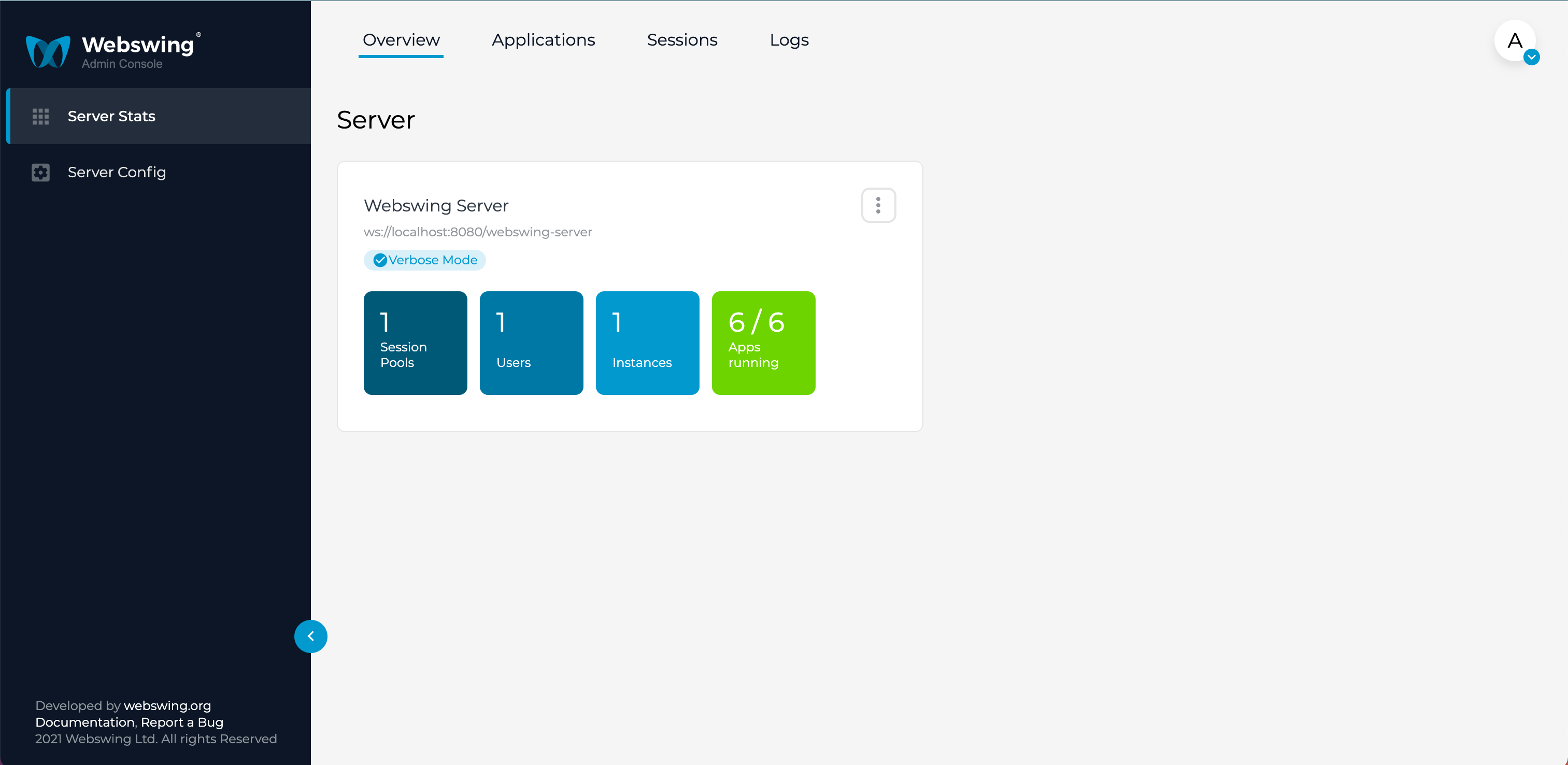
This section shows you the overview of the server statistics. You can see how many session pools are available, how many users are connected, how many instances are running and how many apps are configured. You can also enable verbose mode and go to server logs.
On the left sidebar, under the statictics you have server configuration option. Server configuration form allows you to configure your server.
Applications
Applications section is for applications management and configuration. In this section you can see the list of all existing apps.
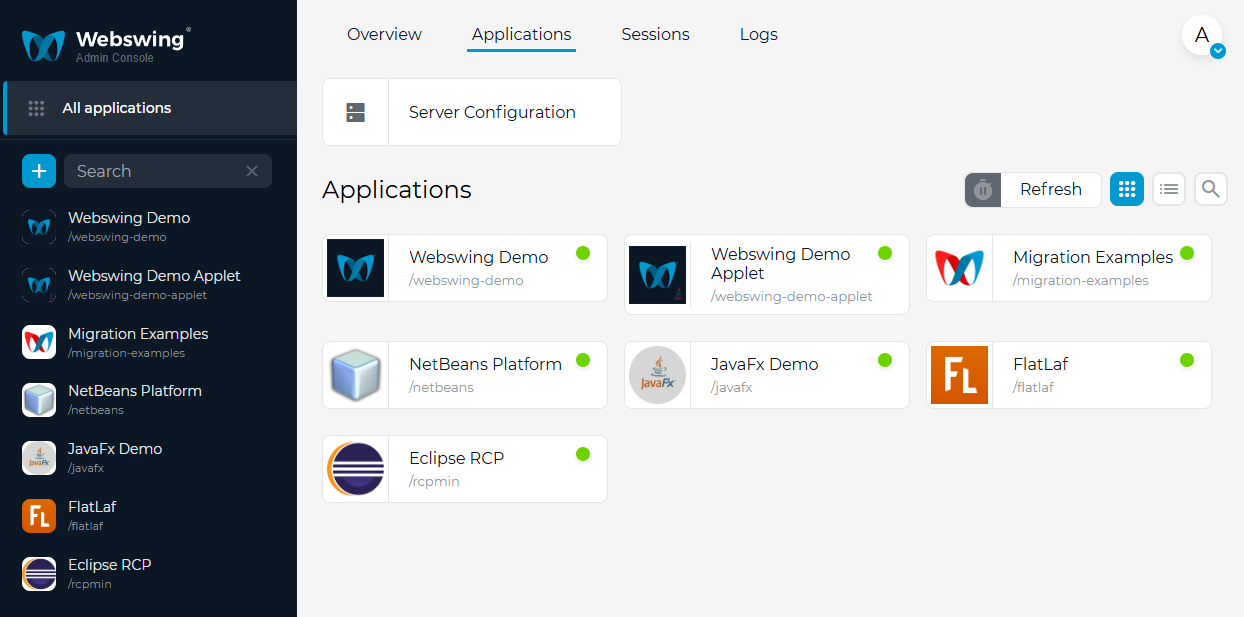
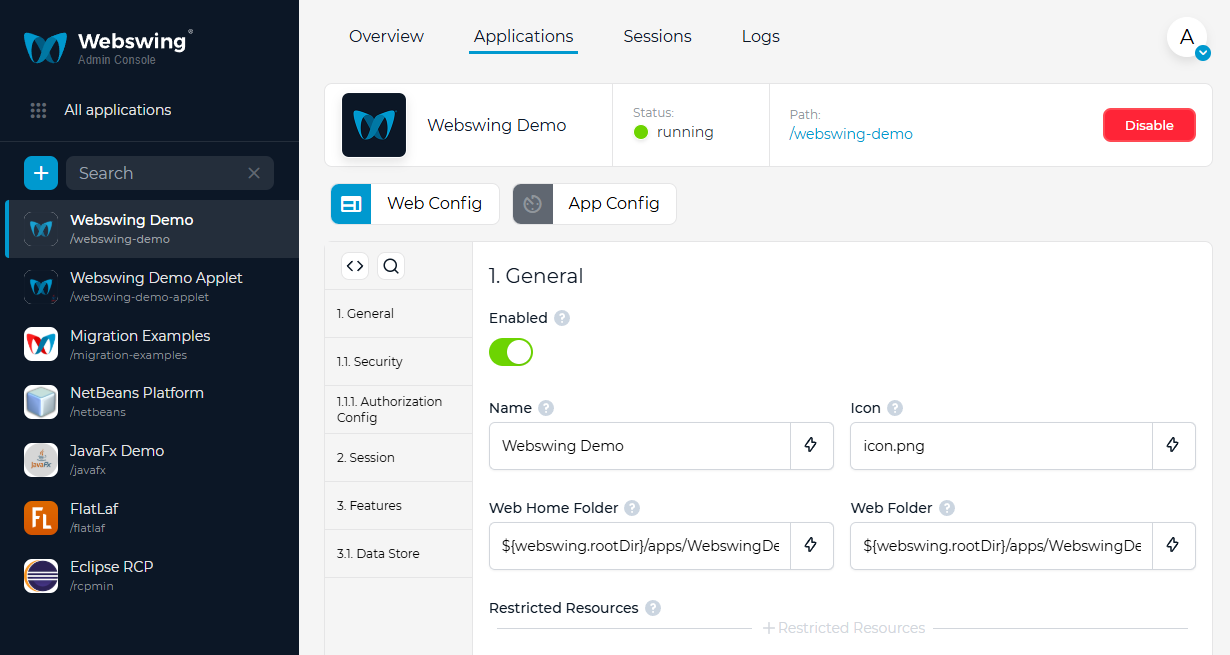
You can select and configure, enable/disable or remove a single application, also create new or duplicate selected one. For more details on how to configure your application please refer to this page.
Sessions
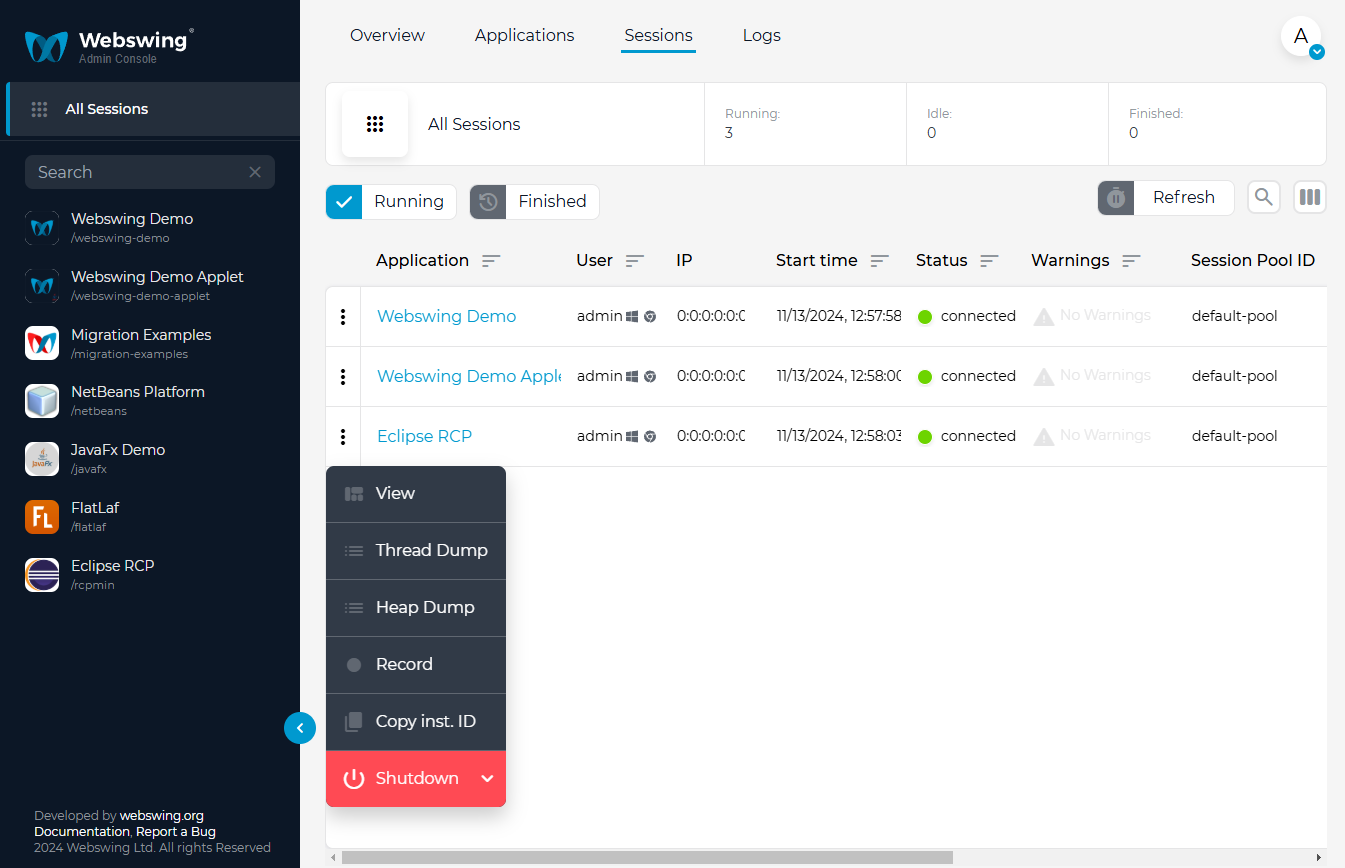
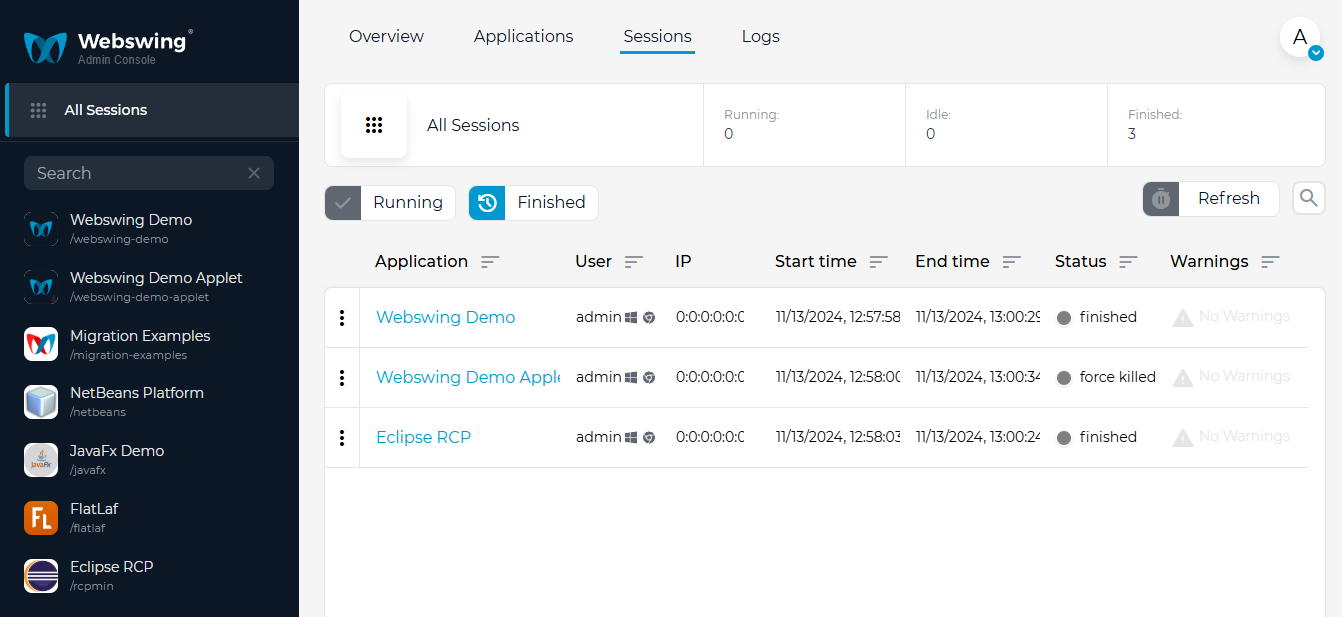
In the top navigation bar you can access Sessions. This page contains table of Running & Finished sessions, which you can filter by selecting the application name on the left sidebar. There are also options to filter and sort the sessions list.
Running
Here you can see details about each running session with options to shutdown, create thread dump, heap dump, record or view the session detail. When you extend the table by clicking toggle switch on the top of the table, It will become wider with more details such as session metrics (aggregated data about CPU, RAM and network consumption) and IDs needed for session identification.
Finished
In Finished sessions tab you can see the history of all finished sessions with some useful details - username, IP address, session duration and warnings.
Session Detail
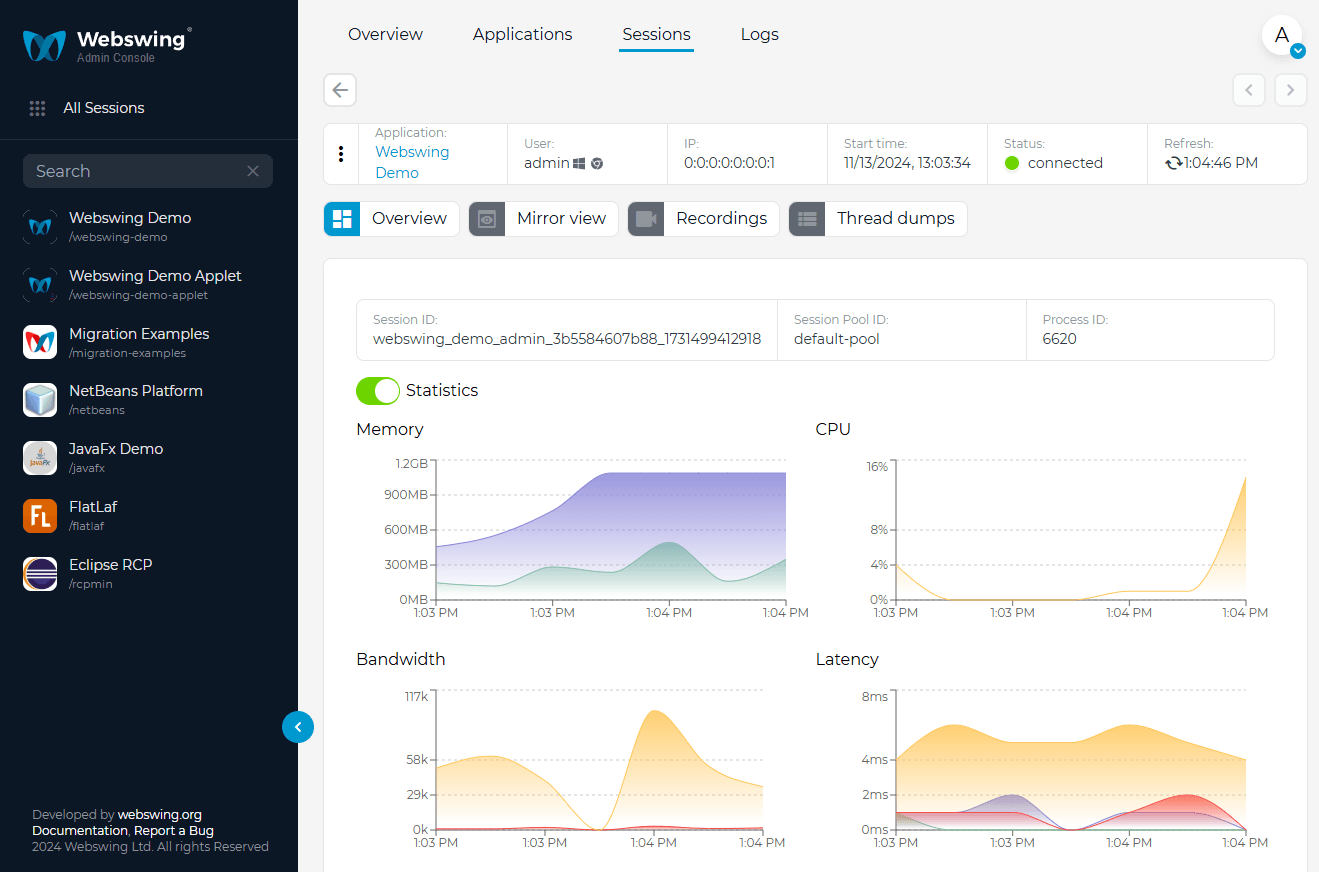
Session detail view contains all the details, metrics and options for session management & monitoring. There are also controls for mirror view, recording & playback, session logs and warnings.
Latency
The Latency Graph consists of the following partial graphs
- Average HTTP ping latency - delay between sending a request and obtaining response (no business logic is performed on the server)
- Average Server Rendering latency - delay between sending user event to destkop application and receiving rendering event from the AWT framework
- Average Client Rendering latency - delay between receiving rendering event and displaying it to user in JavaScript
- Max E2E frame based latency - latency from the user event to server + server rendering + sending the change back to user + client rendering
Customization
By default the graphs show CPU/Memory usage history of the last 10 minutes. This is due to memory requirements of the data. The defaults can be changed during startup of Webswing Server by providing specific System properties. Please note that low interval and high history size results in extended Memory and CPU usage.
webswing.stats.interval=10 (Granularity of the metrics, average of last 10 seconds is default)
webswing.stats.historySize=60 (Number of observations kept in memory, 60 by default)
webswing.stats.memUsageWarn=0.8 (Threshold to generate a memory usage warning, 80% default)
webswing.stats.latencyWarn=700 (Threshold to generate a network latency warning, 700ms default)
webswing.stats.pingWarn=500 (Threshold to generate a ping warning, 500ms default)
Mirror view
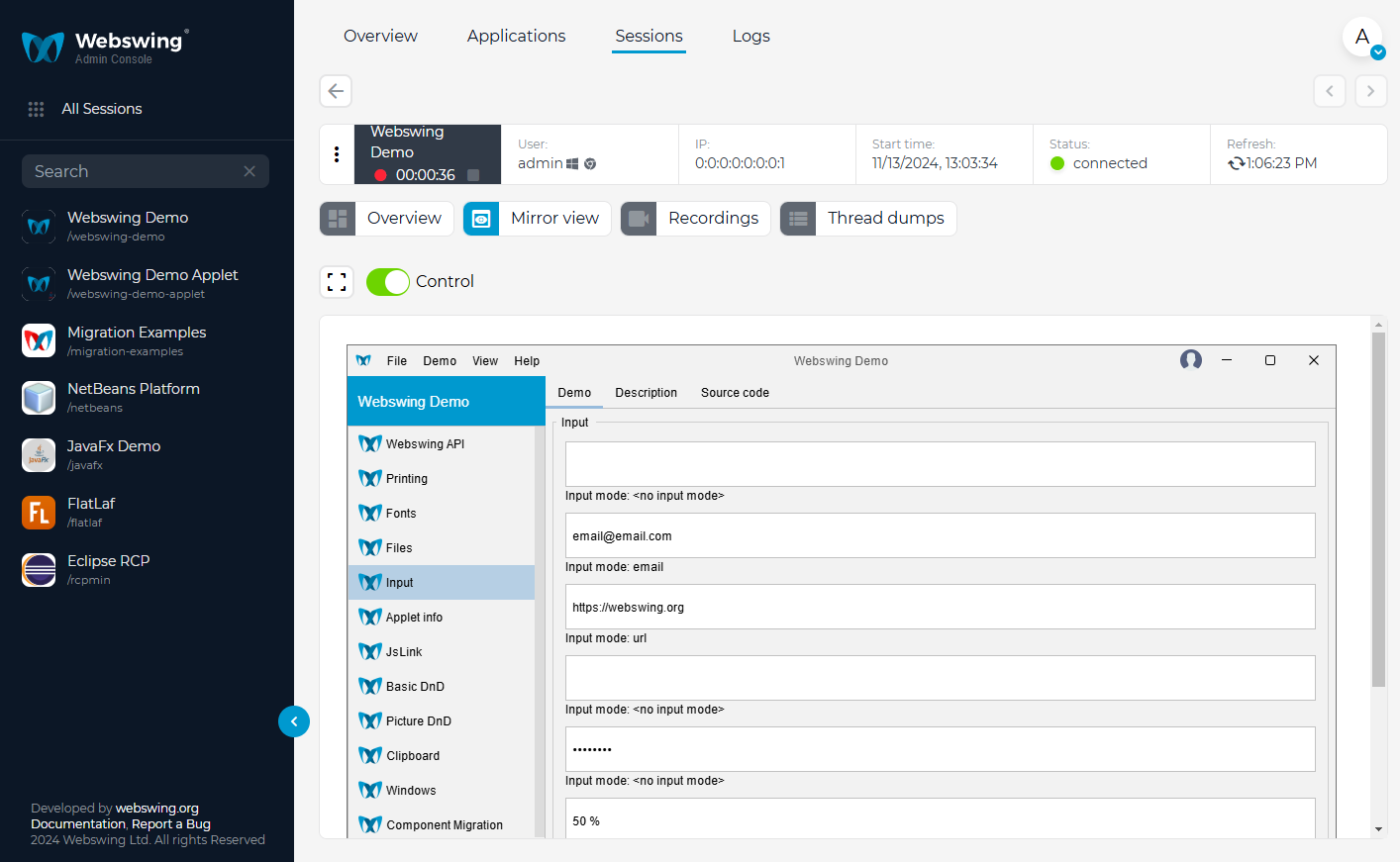
In the session detail page you can click the Mirror View button to see the live view of the user's session. You can take control of the session using the Control switch.
Mirror and recording consent
Using mirror and recording feature by administrator may bring privacy concerns for your end-users. In that case you can enable requesting user consent before mirror view or recording starts. Simply enable Require Recording Consent or Require Mirroring Consent in your application configuration.
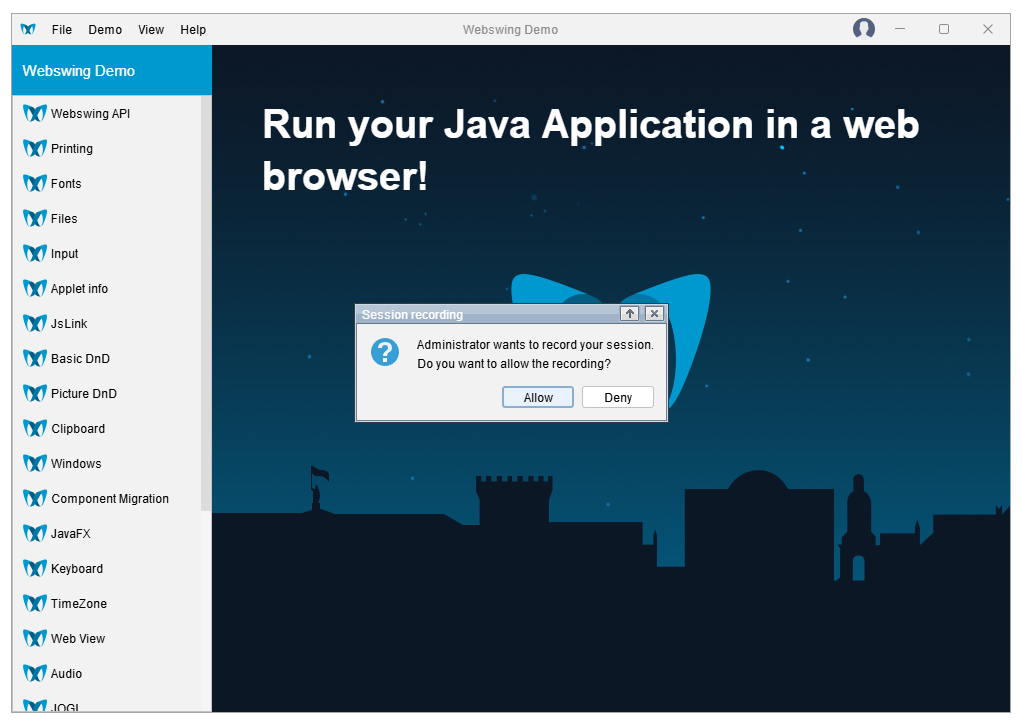
If you'd like to change the text in consent dialogs, add the following system properties to vmArgs configuration of your application:
| System property | Default text |
|---|---|
| webswing.recording.message | Administrator wants to record your session.\nDo you want to allow the recording? |
| webswing.recording.title | Session recording |
| webswing.recording.allow | Allow |
| webswing.recording.deny | Deny |
| webswing.mirroring.message | Administrator wants to mirror and take control of your session.\nDo you want to allow the mirroring? |
| webswing.mirroring.title | Session mirroring |
| webswing.mirroring.allow | Allow |
| webswing.mirroring.deny | Deny |
Another way to customize the consent is to use the Webswing API's ConsentListener. The following code changes default texts of recording consent dialog, there are similar methods for mirroring consent.
WebswingUtil.getWebswingApi().setConsentListener(new ConsentListener() {
    @Override
    public boolean beforeRecordingConsentDialogShowed(ConsentEvent event) {
        // return true to show the built-in consent dialog
        return true;
    }

    // custom messages in recording dialog
    @Override
    public boolean beforeRecordingConsentDialogShowed(ConsentEvent event) {
        Properties props = new Properties();
        props.put("webswing.recording.title", "Recording title");
        props.put("webswing.recording.message", "Recording message.\n\nAre you sure?");
        props.put("webswing.recording.allow", "Recording Allow");
        props.put("webswing.recording.deny", "Recording Deny");
        event.setConsentMessages(props);
        return true;
    }
});
To show your own dialog or automatically give consent based on your application settings, you can use the following method.
WebswingUtil.getWebswingApi().setConsentListener(new ConsentListener() {
    private boolean showingRecordingDialog = false;

    // custom recording consent dialog
    @Override
    public boolean beforeRecordingConsentDialogShowed(ConsentEvent event) {
        if (showingRecordingDialog) {
            return false;
        }

        SwingUtilities.invokeLater(() -> {
            showingRecordingDialog = true;

            int result = JOptionPane.showOptionDialog(
                    null,
                    "Do you want to allow Administrator to record your session?",
                    "Recording consent",
                    JOptionPane.YES_NO_OPTION,
                    JOptionPane.QUESTION_MESSAGE,
                    null,
                    new String[] {"Yes", "No"},  // button titles
                    "Yes" // default button
            );

            showingRecordingDialog = false;

            WebswingUtil.getWebswingApi().resolveRecordingConsent(result == JOptionPane.YES_OPTION);
        });

        return false;
    }
});
These methods let you know about the recording and mirroring process:
public void recordingStarted();
public void recordingFinished();
public void mirroringStarted();
public void mirroringFinished();
In addition you can use following methods in Webswing API to check whether the current session is being recorded or mirrored.
public boolean isRecording();
public boolean isMirroring();
Logs
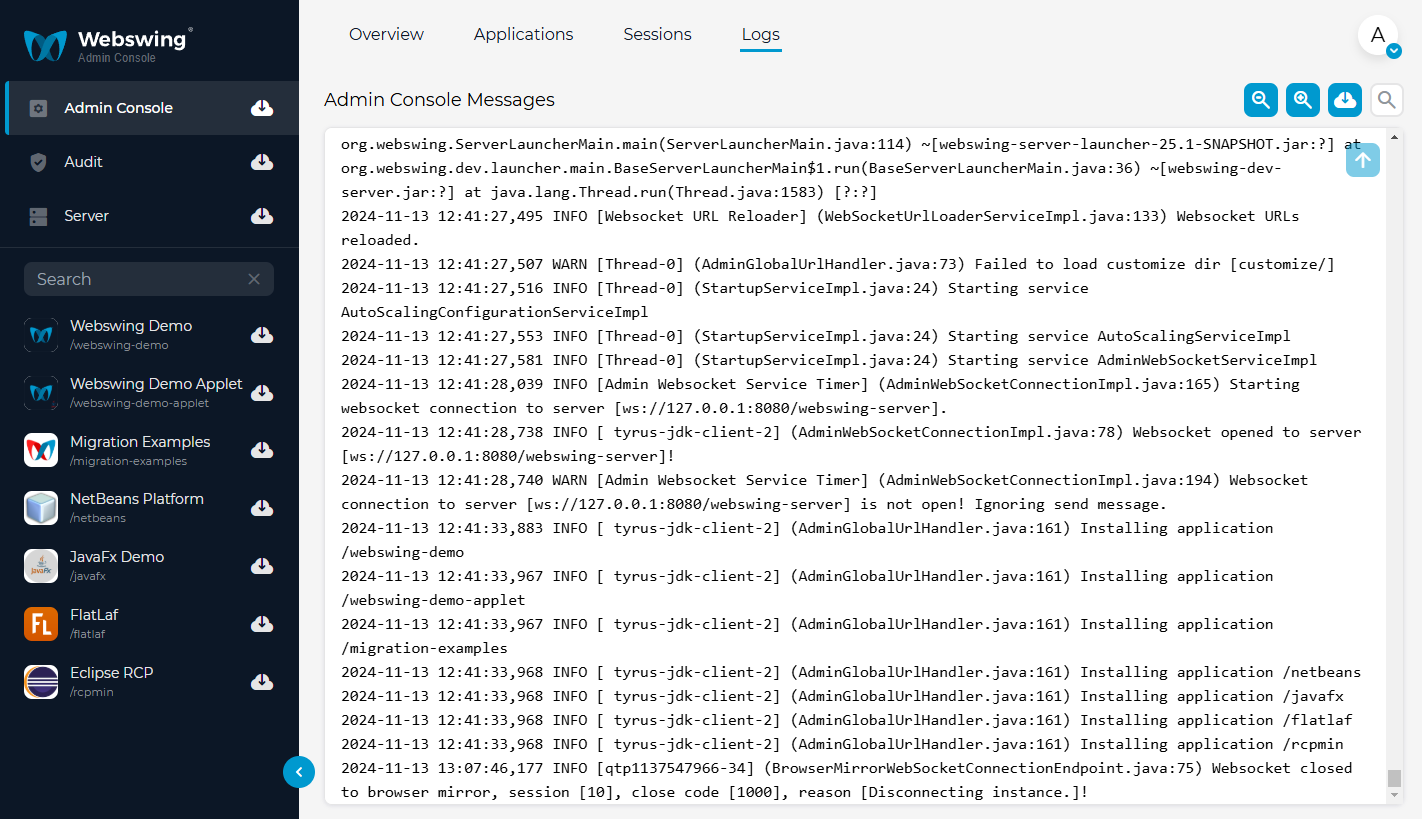
In the top navigation bar you can access Logs. Within the logs page 4 types of logs are accessible:
- Admin Console - logs from current admin console (admin.log)
- Audit - application access logs (audit.log)
- Server - server and application event logs (webswing.log)
- Session - application event logs, as configured in the application (if session logging is enabled)
Logs section provide you with ability to view any logs mentioned above in your browser, but if you prefer to download them, you can do so by clicking the download icons above logs table or in sidebar
Hide configuration options in Admin Console
In webswing.config it is possible to define set of configuration fields that will be hidden in Admin console. The value of these hidden fields will only be visible in JSON view and changes of hidden fields will not be allowed. This settings are useful for example if you need to forbid access to session recording or session mirroring, you can disable these features in configuration and blacklist the configuration option to prevent users simply re-enabling it in admin console. Blacklisted configuration options can only be changed directly be editing the config file.
Blacklisting configuration fields can be done using "blacklist" field followed by an array of blacklisted fields:
"blacklist" : [ "mirroringAllowed", "recordingAllowed" ],
Alternatively you can decide to blacklist everything and then allow changing only selected options using blacklist/whitelist combination:
"blacklist" : ["*"], "whitelist" : ["maxClientsPerUser","dataStore" ],
All configuration fields can be blacklisted and whitelisted (except nested ones). For example, inner entries in the "security" entry can't be blacklisted, only the whole "security" entry can be blacklisted.
When an entry is blacklisted and whitelisted at the same time, entry will be displayed, because the whitelist has higher priority.
In cluster server the configuration of the application is divided into web config and app config. You have to blacklist / whitelist entries in these configuration areas separately.
STANDALONE DEPLOYMENT EXAMPLE
Server configuration (webswing.config) example:
"/swingset3" : {
  "path" : "/swingset3",
  "name" : "SwingSet3",
  "enabled" : true,
  "icon" : "icon.png",
  "security" : {...},
  "blacklist" : [ "mirroringAllowed", "recordingAllowed" ],
  "whitelist" : [ ]
  ...
  "swingConfig" : {
    "directdraw" : true,
    "fontConfig" : {...},
    "launcherConfig" : {...},
    "blacklist" : [ "*" ],
    "whitelist" : [ "directdraw", "fontConfig", "launcherConfig" ],
     ...
  },
},
CLUSTER DEPLOYMENT EXAMPLE
Cluster server configuration (webswing-server.config) example:
"/swingset3" : {
  "path" : "/swingset3",
  "name" : "SwingSet3",
  "enabled" : true,
  "icon" : "icon.png",
  "security" : {...},
  "blacklist" : [ "mirroringAllowed", "recordingAllowed" ],
  "whitelist" : [ ],
  ...
},
Session pool configuration (webswing-app.config) example:
"/swingset3" : {
  "directdraw" : true,
  "fontConfig" : {...},
  "launcherConfig" : {...},
  "blacklist" : [ "*" ],
  "whitelist" : [ "directdraw", "fontConfig", "launcherConfig" ],
  ...
},